How to use AI for 3D printing
By the GrandpaCAD team · · Updated
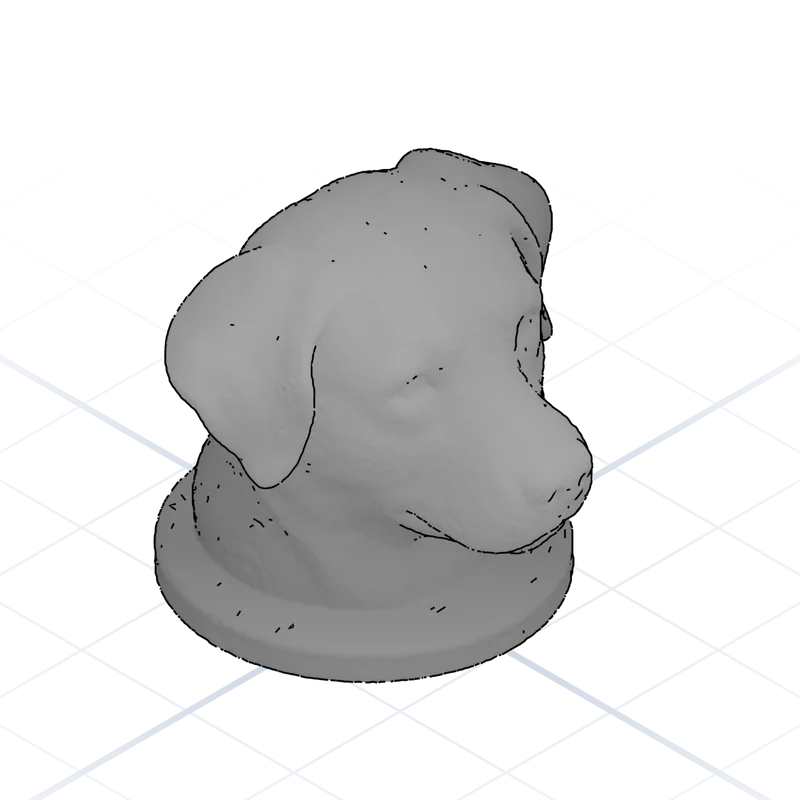
As of November 2026, the simplest way to use AI for 3D printing is to describe what you want in an AI design tool, check it in the preview, export 3MF or STL and slice it as usual. The tool we'd use is GrandpaCAD, and we think it's the easiest to start with: it's a chat, so if you can describe the part you can use it, and it still does advanced work. It builds to the millimetres you type with a slider for each dimension, handles threads and fits, sculpts multi-colour figurines, and downloads 3MF, STL or STEP.
Try GrandpaCAD free 3 free generations · downloads from $12
The trick is picking the right kind of tool: AI CAD for parts that have to fit, an AI mesh generator for figurines and decoration. This guide walks you through both, from prompt to printer, and links to every other guide on this site.
You type what you need
A knurled control knob for a 6mm D-shaft potentiometer, 25mm diameter, with a position indicator line.
It builds the part
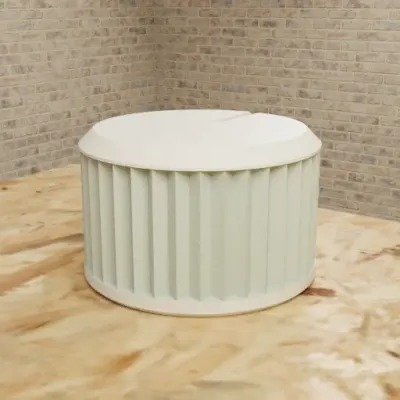
At the sizes you typed. The agent renders the model and checks it before you see it.
You change sizes with sliders
9 sliders in this chat. Moving one doesn't use a generation.
You download the file
3MF for your slicer, or STL, STEP, OBJ, GLB, GLTF. Free accounts get 3 trial generations; downloads need a paid pack or plan.
Or it slices it for your printer
When you ask, with OrcaSlicer: toolpaths in the viewer, print time and grams per filament, no generation used. How it picks settings
Made by the GrandpaCAD team. We set the criteria and score every tool ourselves, GrandpaCAD included. No sponsors or affiliate links. How we score
What AI can do for your 3D printer in 2026
This guide is about design: getting a printable file you didn't have to model by hand. (AI also turns up in printers and slicers, as failure detection and settings help, but that's a different topic.) As of November 2026, AI design tools can:
- Build a functional part from a sentence with sizes in it, such as a bracket for a 25 mm pipe, at those exact millimetres.
- Sculpt a figurine, miniature or prop from a description or a photo.
- Turn a dimensioned sketch into a part, or a logo into a keychain.
- Split a model into filament colours for a multi-material printer.
- Repair, resize, hollow or cut a mesh you already have (in some tools).
What they can't do yet: guarantee a part fits first time, or replace real CAD for assemblies and anything a machine shop will make. You still check the result, and the first print of anything that fits something else is a test.
The three kinds of AI tool
AI CAD generators
Write a parametric model from your description, so sizes are real and editable afterwards: brackets, cases, adapters, knobs, signs and replacement parts. GrandpaCAD does this. Read text to CAD.
AI mesh generators
Sculpt a textured mesh from text or an image: figurines, busts, pets and props, where looks matter more than exact sizes. GrandpaCAD does this too, in the same chat. Read AI 3D model generators for printing.
Chatbots writing CAD code
ChatGPT, Claude or Gemini write OpenSCAD code that a free app turns into an STL. Free, flexible and the most hands-on. Read can ChatGPT make STL files and OpenSCAD with AI.
A quick test: if the print touches, holds or screws into something, it needs CAD. If people mostly look at it, it needs sculpting. GrandpaCAD does both, including both at once (a figure on a base of a set size, a bookend), and the full explanation is in AI CAD vs mesh generators. And if you'd rather learn to draw parts yourself, see the best CAD software for 3D printing.
Every AI for 3D printing guide, by what you're trying to do
Start here
- Which AI CAD tool?Four questions, one pick.
- AI CAD vs mesh generatorsWhich kind of tool your print needs.
- The full rankingEvery AI CAD tool we checked, on the same criteria.
Parts that have to fit
- Text to CADFunctional parts from a description, in millimetres you can change.
- AI STL generatorsYou just want an STL that slices.
- Zoo Text-to-CAD alternativesYou tried Zoo Design Studio.
Figurines, photos and sketches
- AI 3D model generators for printingFigurines, minis and props from text or a photo.
- Image to STLYou have a photo, a sketch or a logo.
- Meshy vs TripoThe two big mesh generators side by side.
- Meshy alternativesMeshy didn't fit your print.
- MakerLab alternativesYou print on a Bambu Lab and tried MakerWorld's AI.
Chatbots and code
- Can ChatGPT make STL files?Use the chatbot you already pay for.
- OpenSCAD with AIRender loops, MCP servers and tips.
- AI CAD promptsPrompts with real dimensions, by what you print.
Free, checks and classic CAD
How to go from prompt to print, step by step
Measure first
For a functional part, measure what it fits with calipers: the pipe, the board, the shelf edge, the screw. Write the numbers down in millimetres. For a figurine, decide the height you want on the shelf.
Pick the kind of tool
CAD for fit, mesh for looks, as above. If you print on a Bambu AMS or another multi-material system, check the tool can export multi-colour 3MF.
Write the prompt like a spec
Sizes and fit for parts; subject, pose, style and a flat base for figurines. Examples are below.
Check it in the preview
Turn the model around. Look for holes on the wrong face, parts that float, thin spikes and missing details. Ask for fixes in plain words.
Adjust, don't restart
In a CAD tool with sliders, change the size and the part rebuilds. In a mesh tool, a change usually means generating again, so get the description right first.
Export 3MF (or STL)
3MF keeps units, parts and colours; STL is just the shape. Both open in Bambu Studio, PrusaSlicer, OrcaSlicer and Cura.
Slice and check
Read the size the slicer reports, look at the preview layer by layer, and note any repair warning. See the checklist below. In GrandpaCAD you can also ask the agent to slice it in the chat: it picks supports, walls and infill for that model, tells you what it chose and shows the toolpaths, with no slicer to install. How that works.
Print a test of the critical bit
For a fit, print just the ring, the clip or the hole region first. Then go back to step 5 with real numbers.
Beginner prompts that print
A functional part. Every size is in millimetres, the fit is named, and the sizes you'll tweak are asked for as parameters.
A hook that clips onto a 19 mm thick shelf and holds headphones underneath.
The clip is 25 mm wide with 0.3 mm extra clearance on the shelf thickness.
The hook drops 40 mm below the shelf and curves up 15 mm at the end, 6 mm thick.
Print on its side with no supports. Make shelf thickness and hook drop parameters.
A figurine. Looks first, plus the three things that make it printable: a flat base, no thin bits sticking out, and a target height.
A cartoon owl sitting on a stack of two books, big round eyes, wings folded.
Chunky shapes, no thin feathers sticking out, flat bottom.
80 mm tall. Three colours: brown owl, cream face, dark red books.
Common beginner mistakes: leaving out sizes (the tool will guess), asking for six changes at once, and describing a pose with arms and wings stretched out, which prints as a forest of supports.
What to check before you print an AI model
The short version is below; the one-page printability checklist has all eight checks.
- Size. Is it the size you asked for? Some mesh tools default to other units: Meshy's default is centimetres. Source: Meshy docs: 3D printing, checked
- Walls. At least 0.8 mm (two perimeters on a 0.4 mm nozzle), more for anything that takes load. Mesh generators sometimes produce paper-thin or hollow surfaces.
- Closed and manifold. Your slicer will warn about holes and non-manifold edges. Tripo's own blog lists holes, flipped normals, thin walls and scale errors as the usual causes of unprintable models. Source: Tripo blog: why is my model not printable, checked
- Flat base and overhangs. A flat face on the bed, and slopes under about 45 degrees or supported.
- Fit features. Holes, slots and threads at the size you asked for, with clearance (around 0.2 to 0.3 mm to start).
- Licence. Free plans can come with attribution or non-commercial terms. Check before you sell prints.
Our pick for beginners
Personalized Name Phone Stand
- Part
- 75 mm wide, 65 degree angle
- 1 colour
- 8 sliders
- 3MF
65 degree stand with an engraved name (name_text parameter) and a cable slot.
Barbed Hose Adapter 32mm to 19mm
- Part
- 32 mm to 19 mm bore
- 1 colour
- 6 sliders
- 3MF
Both hose diameters, barb count and wall thickness as parameters.
Owl Bookend
- Sculpted
- 150 mm tall
- Up to 3 colours
- 1 slider
- 3MF
Sculpted owl on books as a bookend, up to 3 colours. The height slider resizes the whole bookend; a different shape is a new generation.
Heroic Fantasy Warrior Miniature
- Sculpted
- 50 mm tall
- Up to 4 colours
- 1 slider
- 3MF
Warrior with sword and cape on a round base, up to 4 colours. The height slider resizes the whole miniature; a different pose is a new generation.
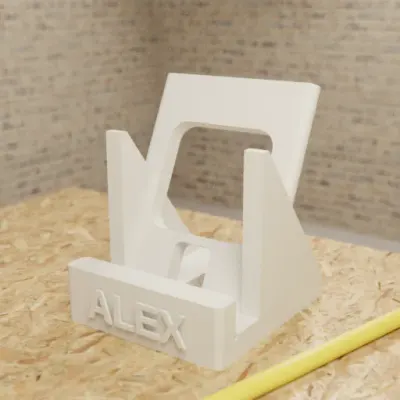
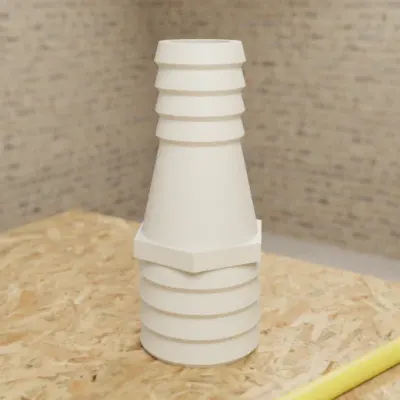
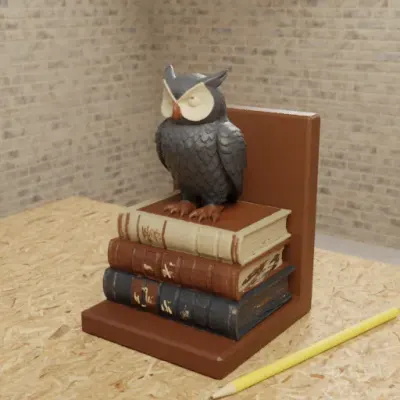
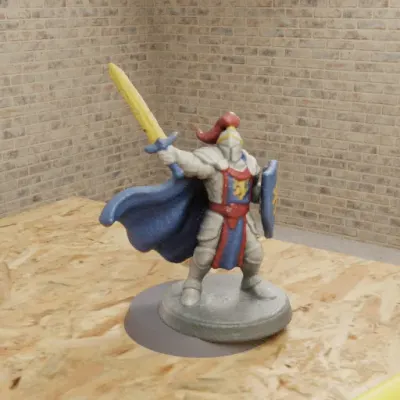
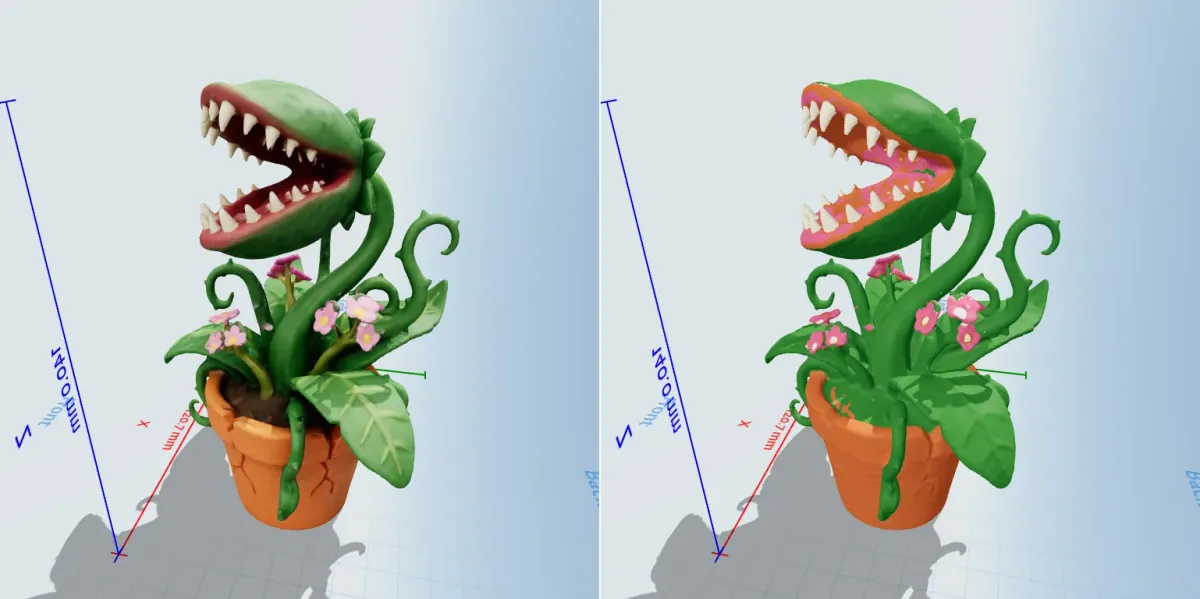
Real GrandpaCAD outputs from public chats our team published; each picture is that chat's own preview render. Open one to see the model, its sliders and the conversation. Sizes and slider counts read from each chat on 8 Nov 2026.
When Zoo is the better pick
If you're not a beginner but a professional engineer working on complex mechanical parts, use Zoo Design Studio: a full parametric CAD app with a feature tree and editable code around its AI agent. Source: Zoo FAQ, checked GrandpaCAD has no feature tree.
Questions people ask
Can AI make 3D models for printing?
Yes. As of November 2026, AI CAD tools build functional parts at the millimetres you type, and AI mesh generators sculpt figurines from text or a photo; most export STL or 3MF for your slicer. Mesh output often needs a size check and sometimes repair before it prints.
Is there free AI for 3D printing?
Yes, with limits. GrandpaCAD, the tool we recommend, is free to try: 3 generations with no card, but downloads need a paid pack (from $12) or plan. Meshy's free plan allows 10 downloads a month under CC BY 4.0, MakerWorld MakerLab gives 2 free image-to-3D generations, Zoo Design Studio and BuildCAD AI export on their free plans, and a free chatbot plus OpenSCAD costs nothing. Details on free AI CAD.
Can ChatGPT make 3D printing files?
Indirectly: it writes OpenSCAD code that you render and export as STL or 3MF in the free OpenSCAD app. Or you connect a modelling tool to ChatGPT as a connector, which builds the model for it. See can ChatGPT make STL files.
Can AI choose my slicer settings?
Some tools do. GrandpaCAD's agent slices on request with OrcaSlicer for your printer and picks the settings per model: tree supports for figurines, 3 to 4 walls and 25 to 40% gyroid or cubic infill for functional parts, a brim for tall thin parts in PETG. It says what it chose, and you can change supports, infill and layer height in the chat. You can always slice the 3MF yourself instead. See slicing in GrandpaCAD.
Are AI-generated models printable?
CAD output usually is, because it's built as closed solids at stated sizes; check that holes and features landed where you asked. Mesh output varies: Tripo's own blog lists holes, flipped normals, thin walls and scale errors as the usual causes of unprintable models. Always check the size and repair warnings in your slicer.
Can I sell 3D prints of AI-generated models?
It depends on the tool's licence. Meshy's free-plan outputs are CC BY 4.0 (commercial use with attribution); Tripo's free models are reported as non-commercial (unverified). GrandpaCAD's terms say you own what you generate and can use it commercially. Read the licence before you sell.